Cards to define work
 Projects to plan scope
 Boards to manage flow
 Tags to add attributes

Custom attributes
Add custom attributes to cards
Tags add any attribute that matters to a card: work type, urgency, impact, affected persona, or anything else the project needs.
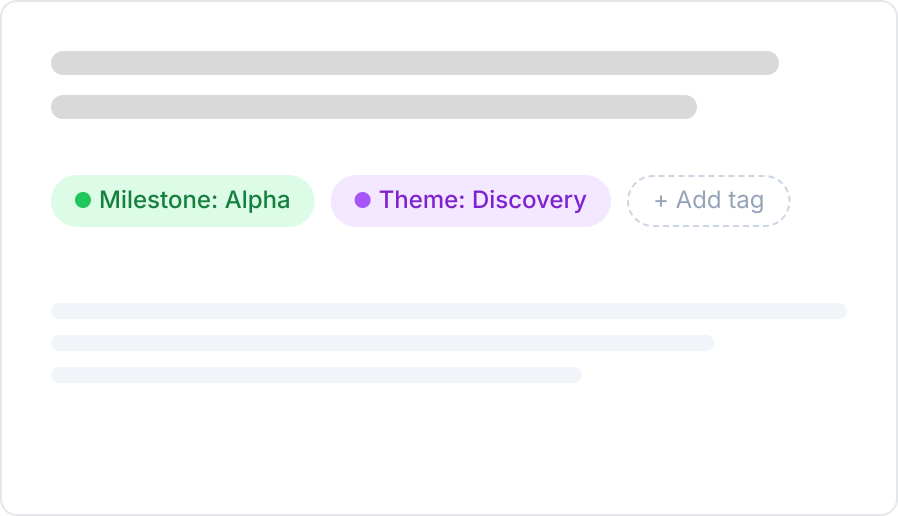
- A tag is a color-coded label Create a tag with a name and a color. Add it to any card. No fields to configure, no schema to define.
- Capture what shapes prioritization decisions Tag cards with urgency, impact, severity, or affected user group so the attributes behind prioritization stay visible.
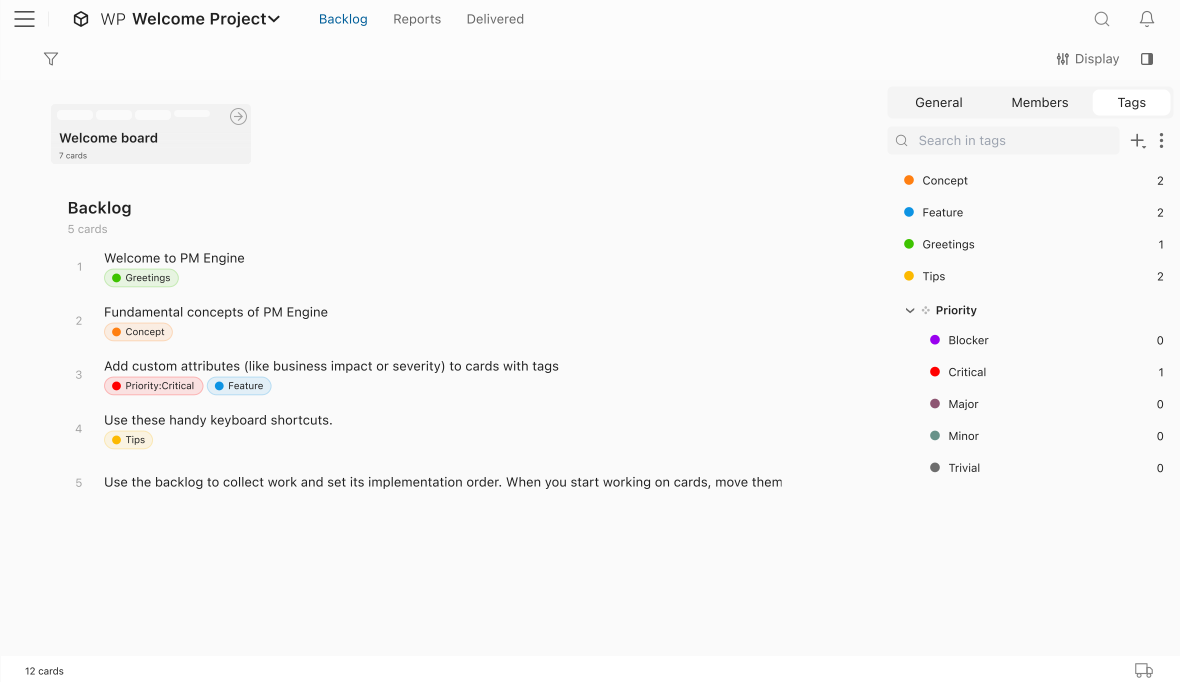
- Apply tags from anywhere Add a tag directly from the card, or drag one from the Tags panel onto any card in the backlog or board.


Structure
Group tags for structure
When a workspace uses many tags, groups bring order to the list and consistency to how teams apply them.
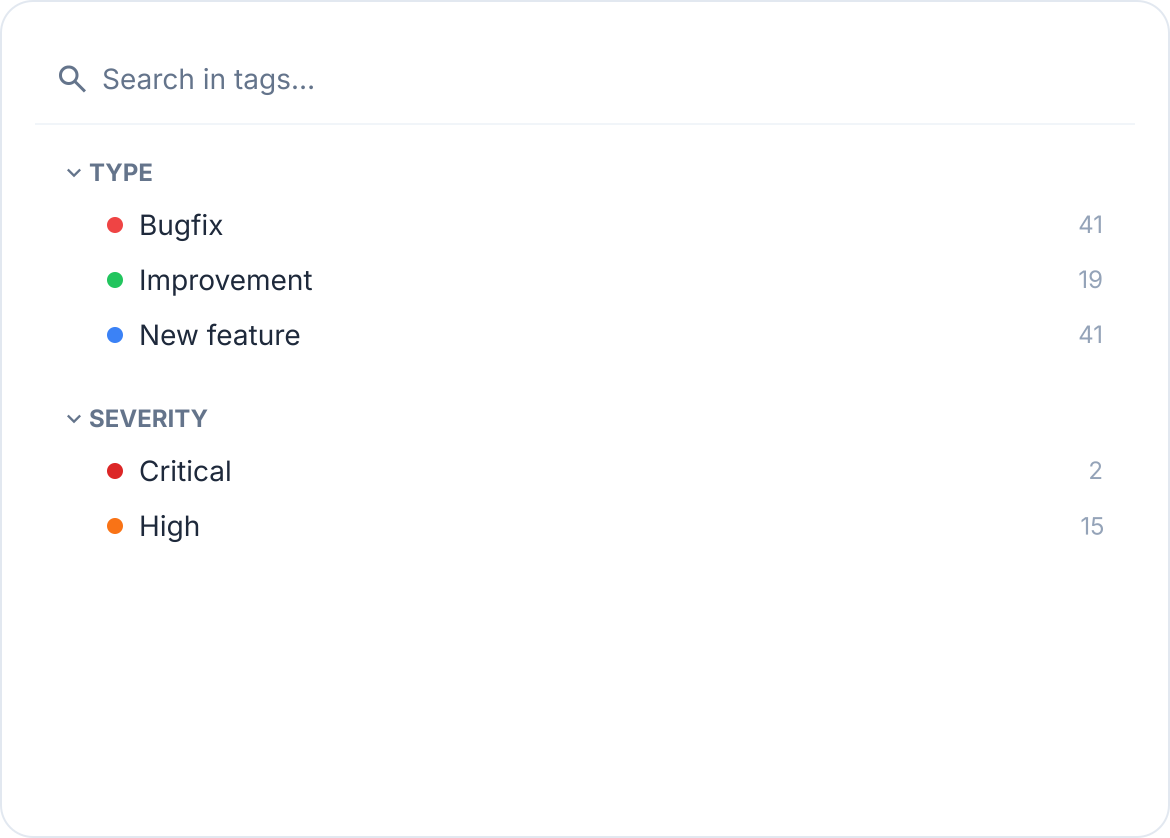
- Create tag groups to reflect categories Group related tags under a shared name such as work type, affected persona, component, or urgency so the list stays readable.
- A shared vocabulary across the team Tag groups give everyone the same structure to work from, so classifications stay consistent and filters stay reliable.
- Apply tags to multiple cards at once In the backlog, select several cards and drag a tag onto them. All selected cards receive it simultaneously.


Workspace
Share tags across the workspace
Tags start as project-specific. Promote them to the workspace level to make them available in every project.
- Project-specific tags by default New tags belong to the project they were created in, so other projects do not see them unless you promote them.
- Promote to workspace-level Convert any project tag to a workspace-level tag and it becomes available in all projects and boards across the workspace.
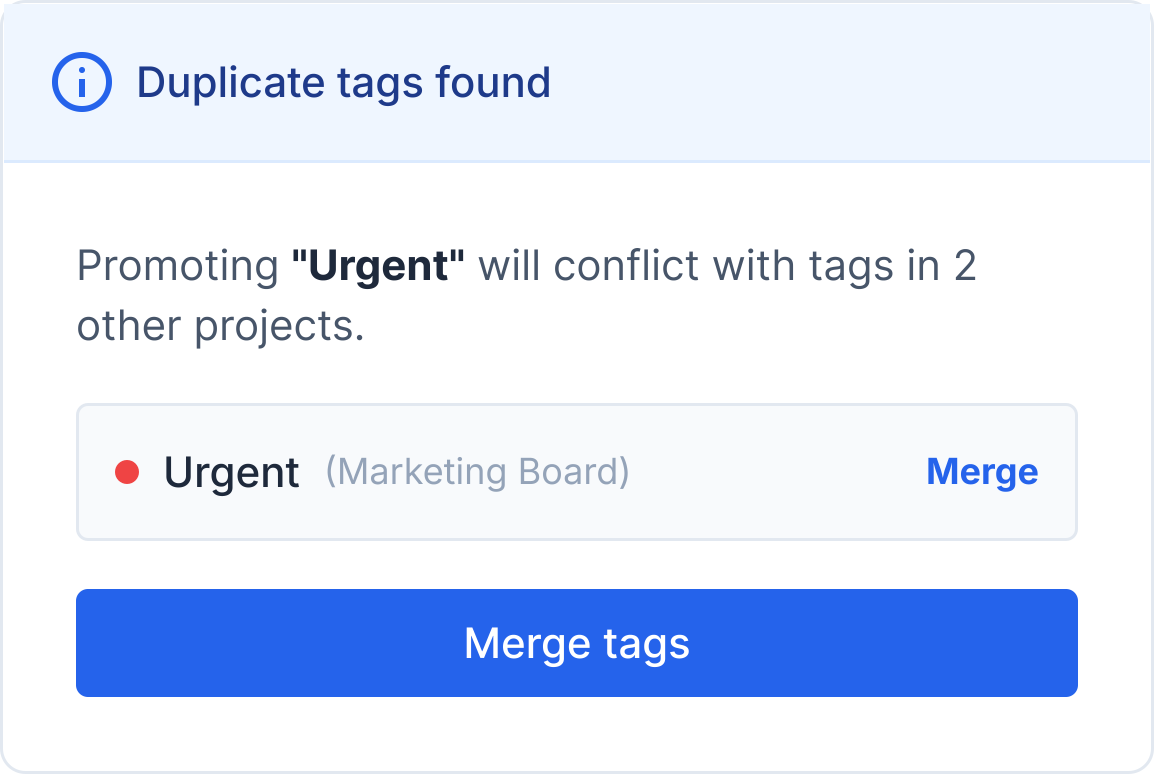
- Spot and merge duplicates When a promoted tag already exists elsewhere, PM Engine identifies the duplicates and lets you merge them into one.


Filtering
Find the right cards instantly
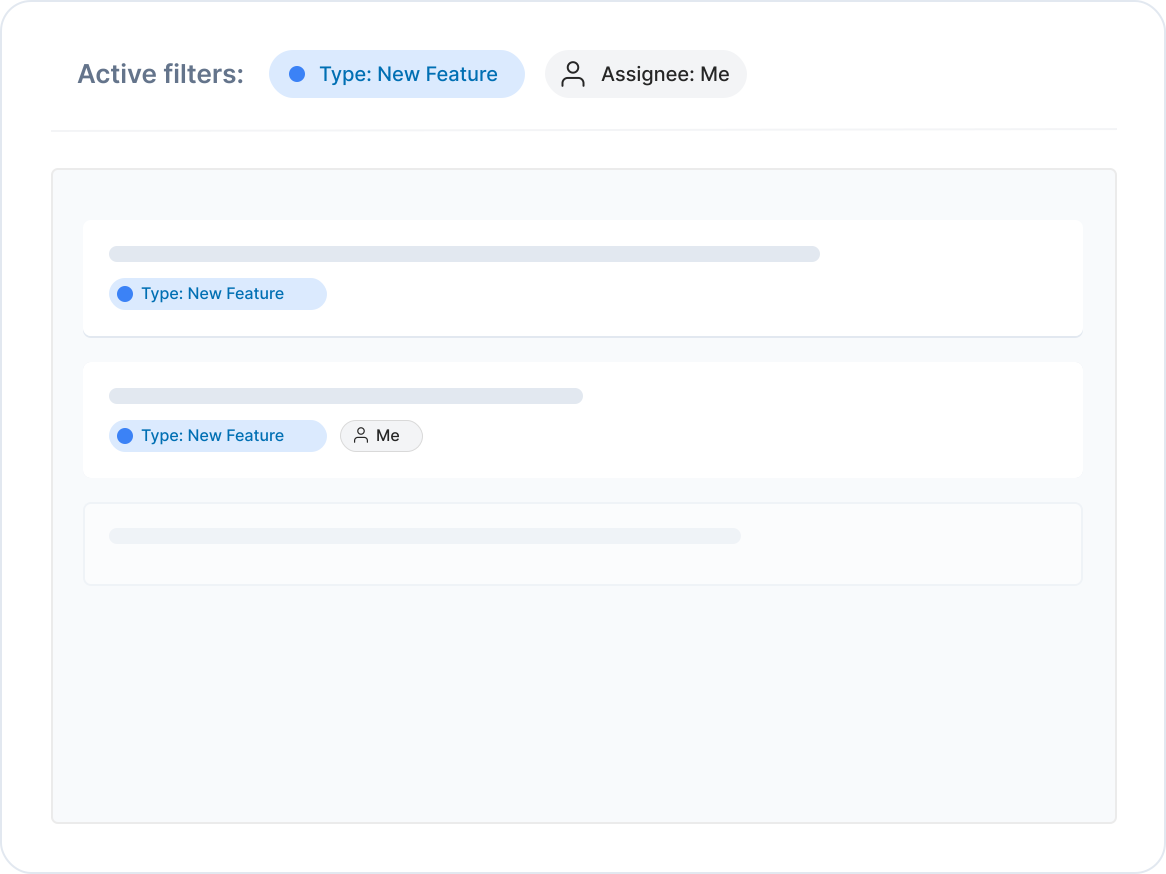
Tags make any project or board filterable. One click narrows the view to exactly the cards that carry a specific attribute.
- One-click quick filter Open the Tags panel and click any tag. The view immediately shows only cards carrying that tag.
- Combine tags with other criteria Advanced filters combine tags with members, due dates, and text so the result is precise, not just smaller.
- Exclude tags from a filter Any tag in an active filter can be negated so cards carrying that tag are removed from the results.


Maintenance
Keep tags accurate as the work evolves
As projects grow, tag names change meaning and some fall out of use. Tags stay up to date across cards without manual cleanup.
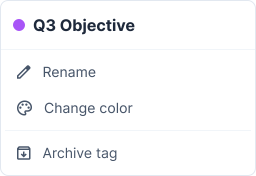
- Rename or recolor at any time Update a tag's name or color from the Tags panel and the change applies everywhere the tag appears.
- Archive tags no longer in use Archive a tag to remove it from the list while keeping it on the cards where it was already applied.
- Restore archived tags when needed Archived tags stay recoverable so you can review past classifications or restore a tag to active use.