Cards to define work
 Projects to plan scope
 Boards to manage flow
 Tags to add attributes

Feature overview
Boards
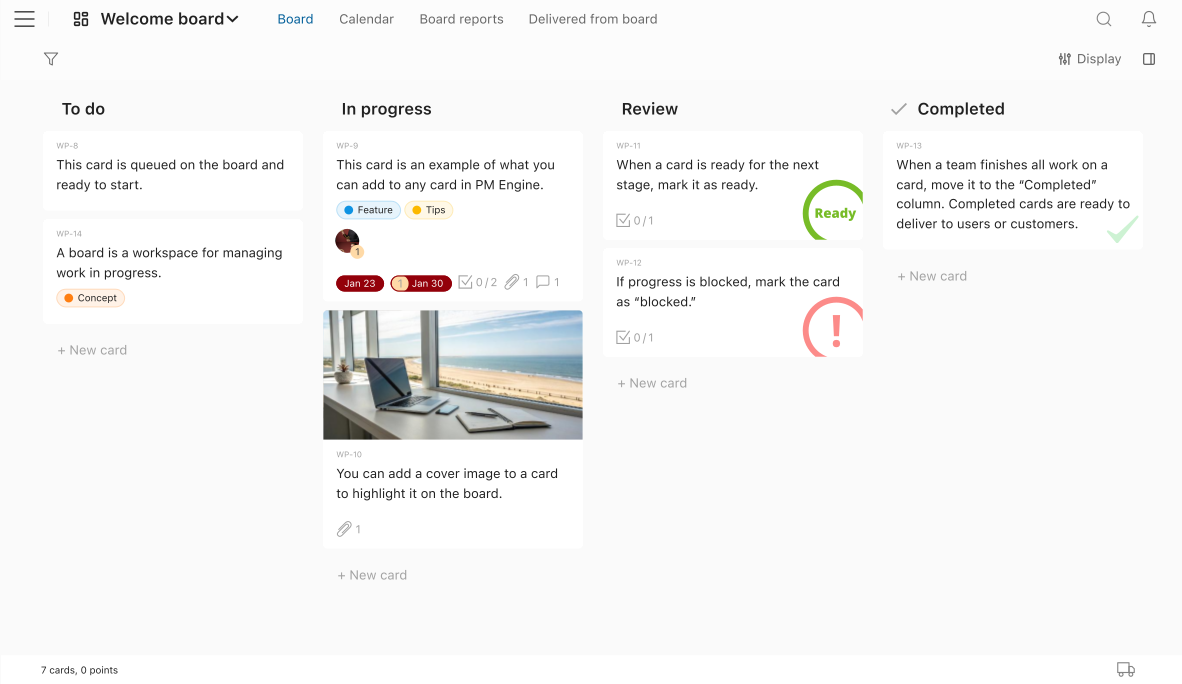
One board, one focused work stream. Cards move through stages until the work is done.
Start
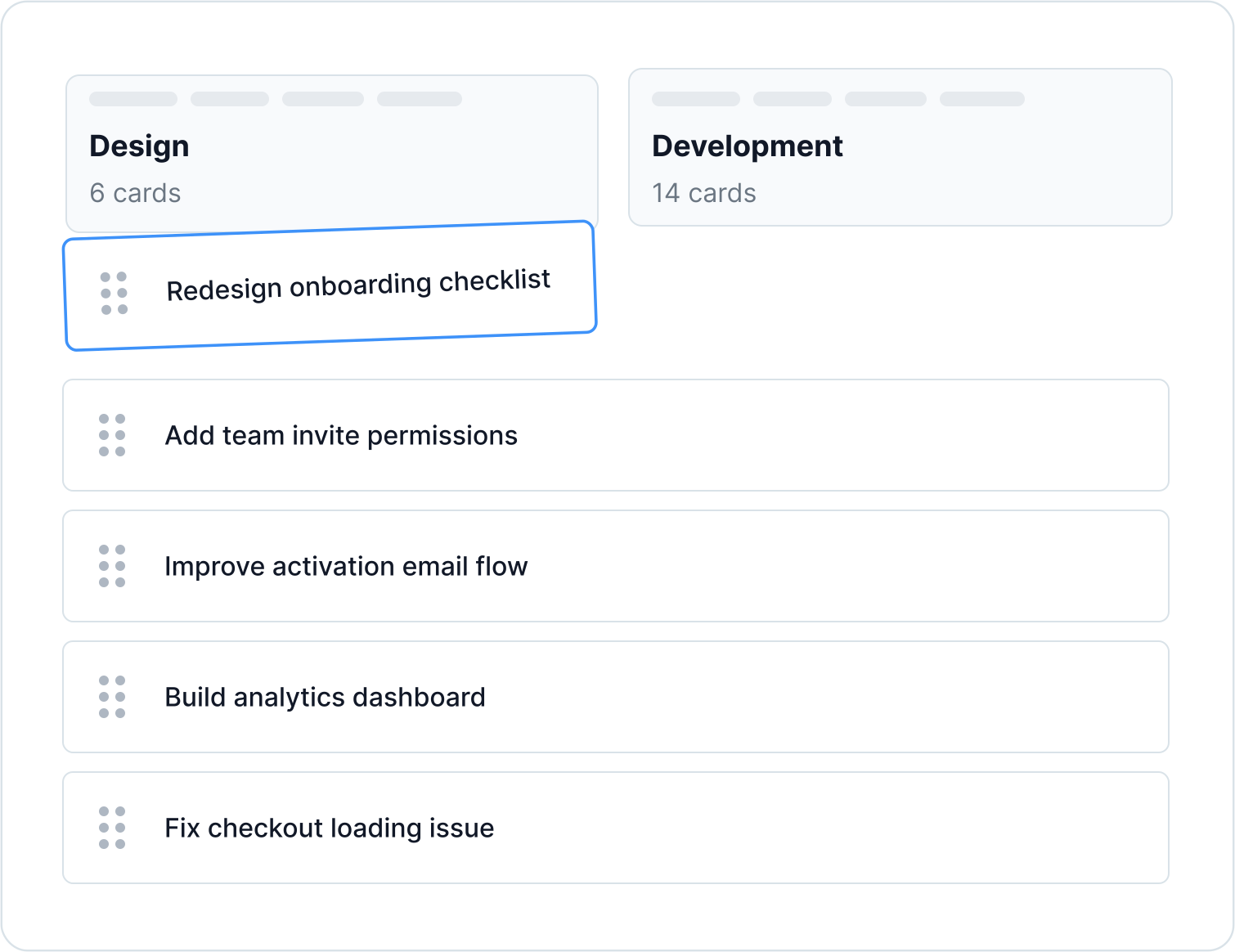
Start work from the project backlog
The team pulls cards from the project backlog when they're ready to start.
- Drag a card from the backlog Pull a card from the project backlog and drop it onto the board. It enters the first column of the team's process - committed, and ready to move forward.
- Move multiple cards at once Select a group of cards in the backlog and drag them all to the board together.
- Boards stay focused Boards hold only cards the team is working on now or will start soon. Everything else stays in the backlog.


Flow
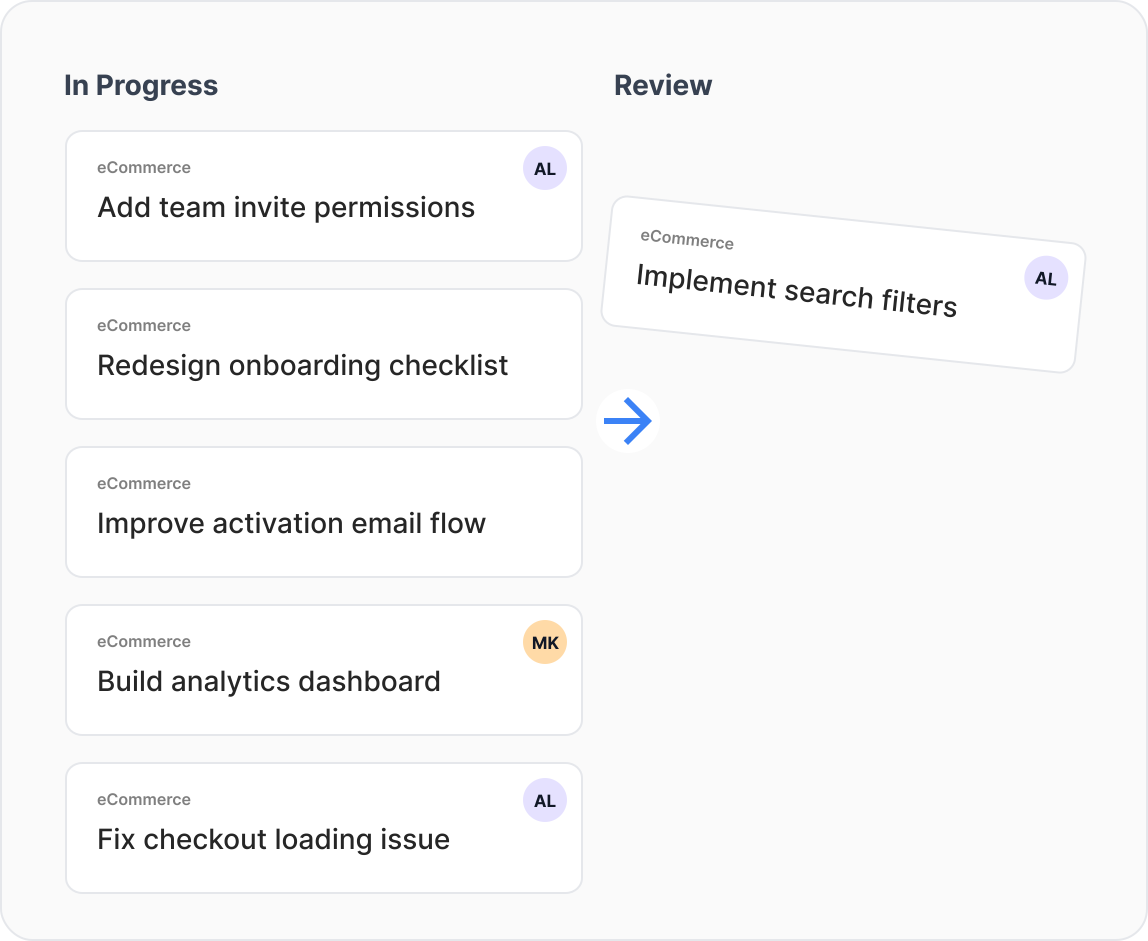
Move cards through the stages of your process
Columns represent the stages of the team's process. Cards move left to right as work advances.
- Columns reflect the team's process Every board starts with three default columns. Add, rename or customize them to match the team's process.
- Cards move left to right as work advances Move a card to the next column as it progresses. The board shows the current state of every card.
- Every team member can move cards Any team member with editor access on the board can move a card to any column.


WIP Limits
Set limits to protect focus
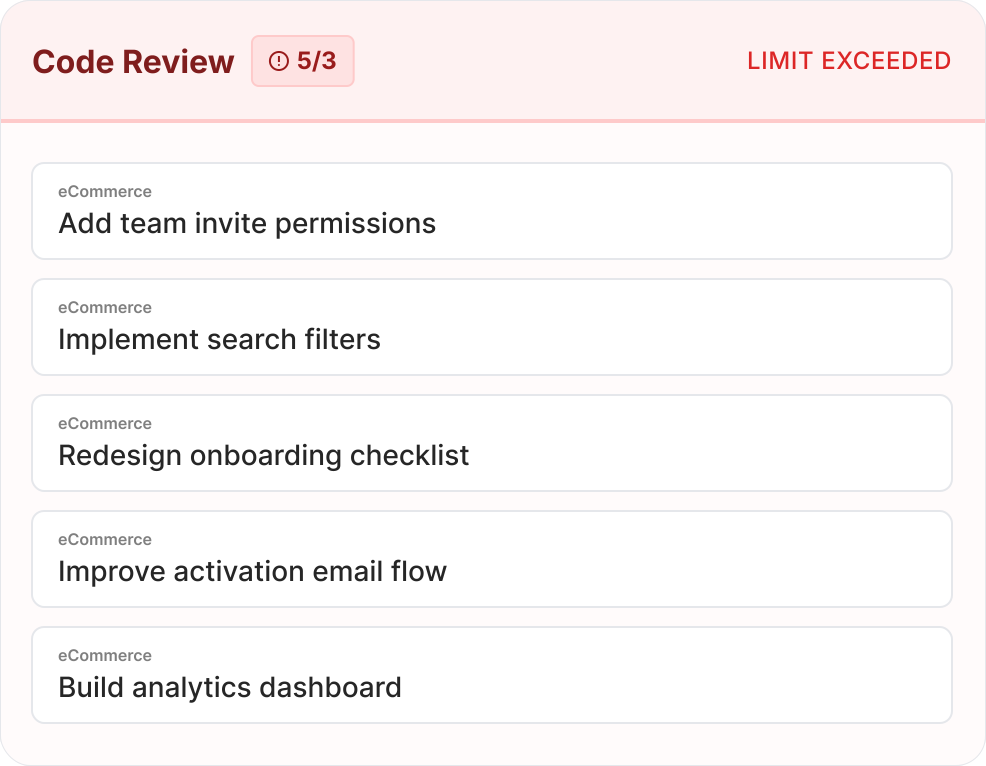
Teams can set a card limit for each column. When a column exceeds its limit, the board signals it immediately.
- Set a work-in-progress limit per column Each column can have a card limit: the maximum number of cards it should hold at any time.
- The board signals when a limit is exceeded When a column exceeds its limit, the board highlights it immediately. The team sees it and can respond before it becomes a bottleneck.
- Adjust limits as the process evolves Change or remove a column's limit at any time. The board adapts as the team's process matures.


Signals
Signal what's blocked or ready to move
Cards that need attention get marked. No meeting required.
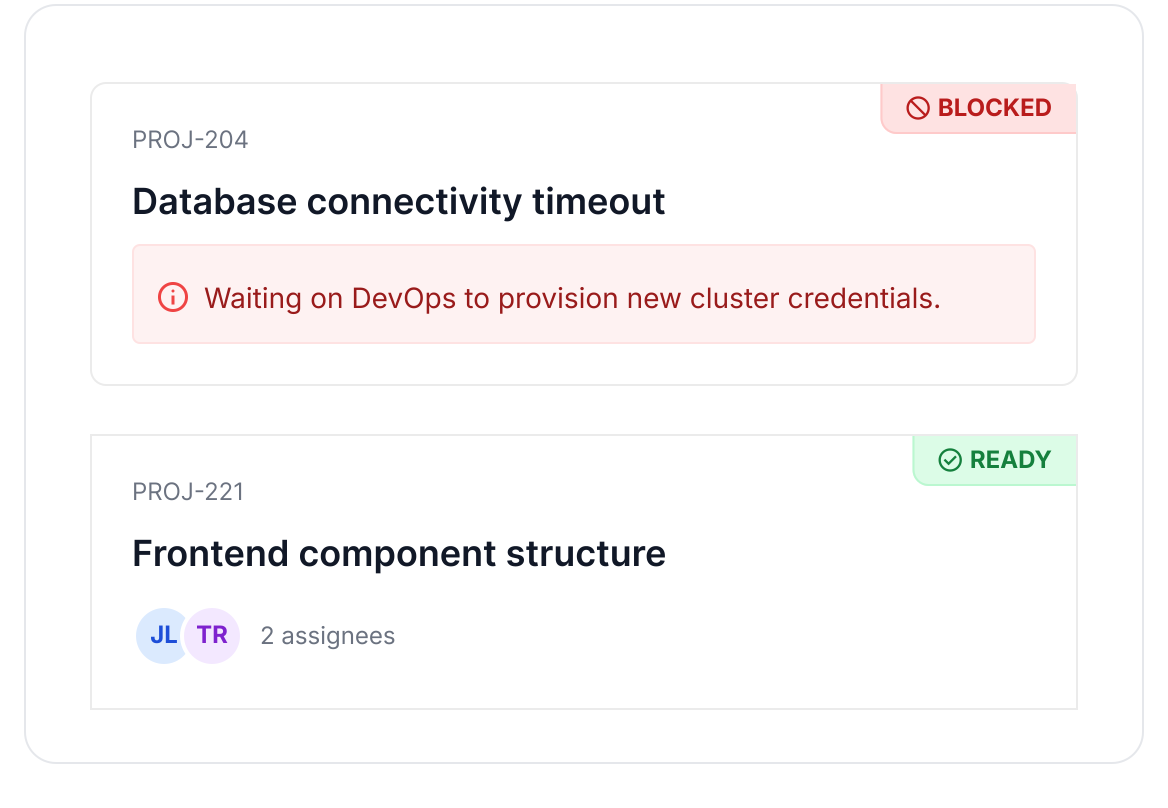
- Mark a card as ready Flag a card to signal it's prepared for the next stage. The team sees it immediately on the board.
- Mark a card as blocked When something prevents progress, mark the card as blocked. Or create a task inside the card that describes what needs to be resolved and mark it as the blocker.
- Signs clear automatically Flags clear automatically when conditions change. Complete a blocking task and the blocker disappears. Move a ready card to the next column and the ready flag disappears.


Delivery
Deliver completed work
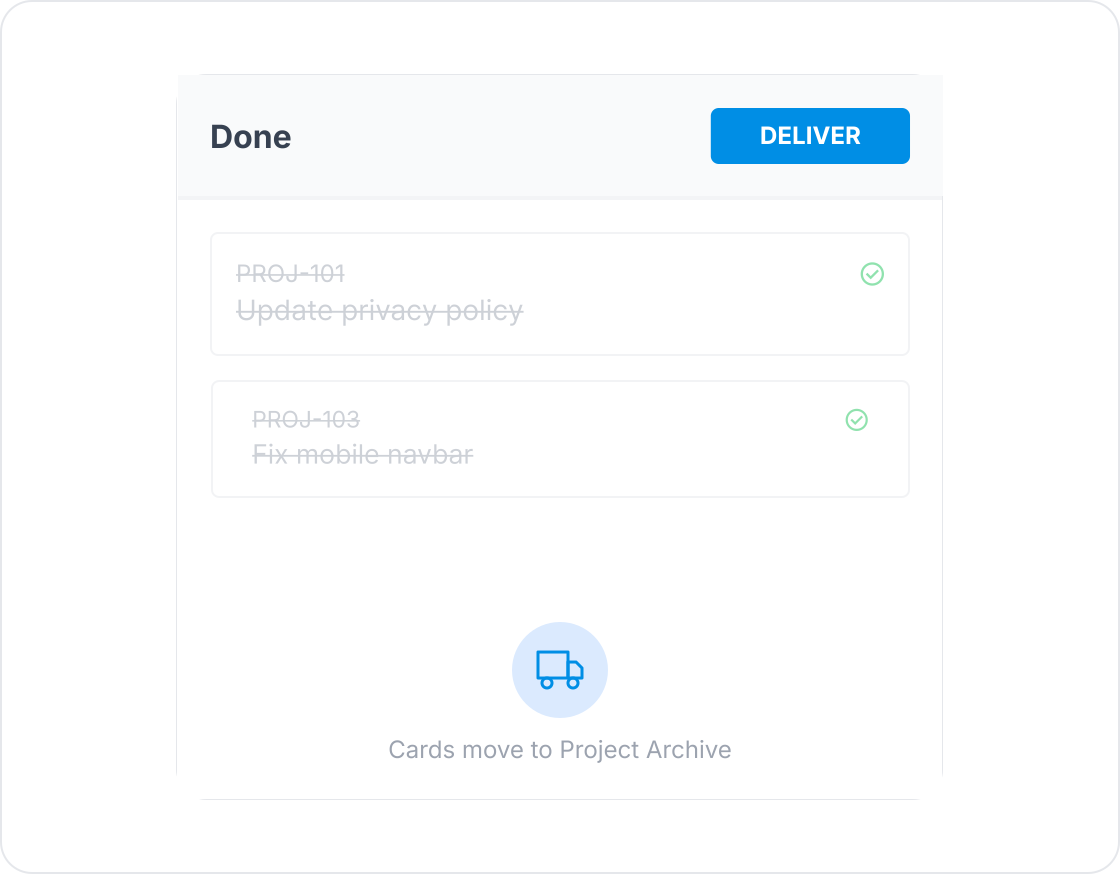
When a card reaches the final column, it's ready to deliver. Delivering it closes the card and removes it from the board.
- Deliver one card at a time Any card in the final column can be delivered individually. It moves to the project's Delivered section and leaves the board.
- Deliver all completed cards at once All cards in the final column can be delivered at once. One action closes them all and clears the board.
- Delivered cards stay visible in the project Delivered cards leave the board but stay accessible. They appear in the project's Delivered section and in the board's own delivery history.


Health
Understand the health of your process
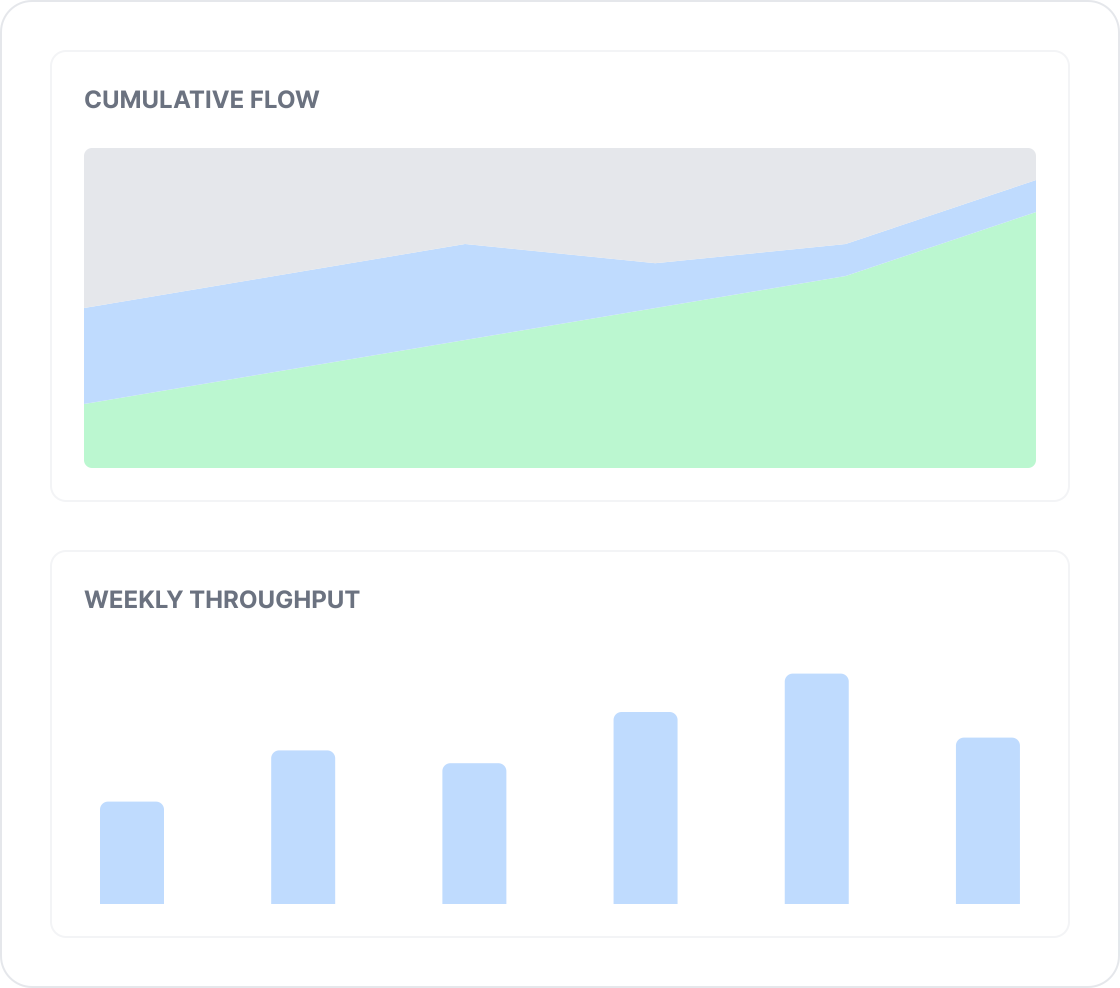
Built-in reports show how the board is performing over time.
- Cumulative flow chart The chart shows how cards were distributed across stages over time. Widening bands reveal where work is accumulating.
- Delivery rate The report shows how much work the board delivers each week. The moving average smooths out variation and gives a realistic basis for planning.