Features

138features. One system, on your own server.

Planning, boards, time tracking, reports, AI assistant access, and self-hosting. All are on the free Starter plan.

The basics

How PM Engine thinks

Three concepts. Every other feature builds on them.

  • Project = what

    A project collects the cards that serve the same goal. It shows what's planned, what's in progress and what's delivered.

  • Board = workflow

    A team's work area. Cards move through the team's workflow here, and everyone sees where each one stands.

  • Card = outcome

    A card is an outcome to deliver. Its tasks are the steps that get there.

Planning and execution

Cards, plans and workflows: the foundations of daily work.

Cards and tasks

All the information, right where the work is.

The description, tasks, assignees, due dates, files and discussion sit on one card. Nothing is scattered across email and spreadsheets.

  • Rich-text descriptions with Markdown shortcuts

    Format the description with headings, lists and tables. Type Markdown shortcuts, and they turn into formatting as you write.

  • Create cards or tasks from selected text

    Select paragraphs in the description and turn them into cards or tasks in one click.

  • Task list on the card

    Break a card into tasks. Each task has its own assignees, due date, description, attachments and discussion.

  • Multiple assignees on cards and tasks
  • File and URL attachments
  • Card links that stay up to date
  • Card covers
  • Due dates on cards and tasks
  • Point estimates on cards
  • Remaining time on cards and tasks
  • Ready and blocked flags on cards
  • Paste a list to create tasks
  • Convert a task into a card
  • Duplicate a card
  • Copy a card as an AI prompt
  • Direct links to a card, task or comment
  • Live updates when others make changes
  • Conflict handling for simultaneous edits
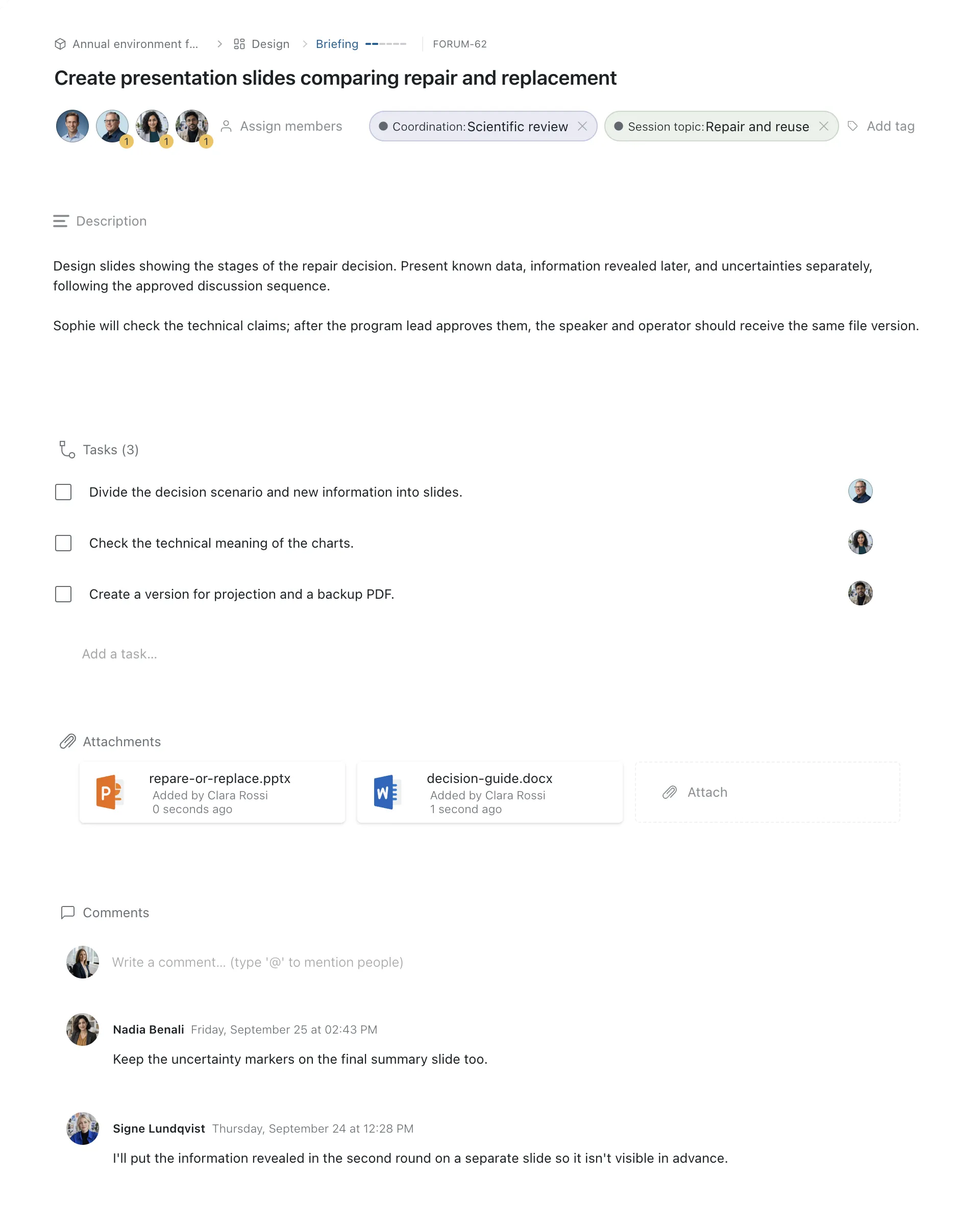
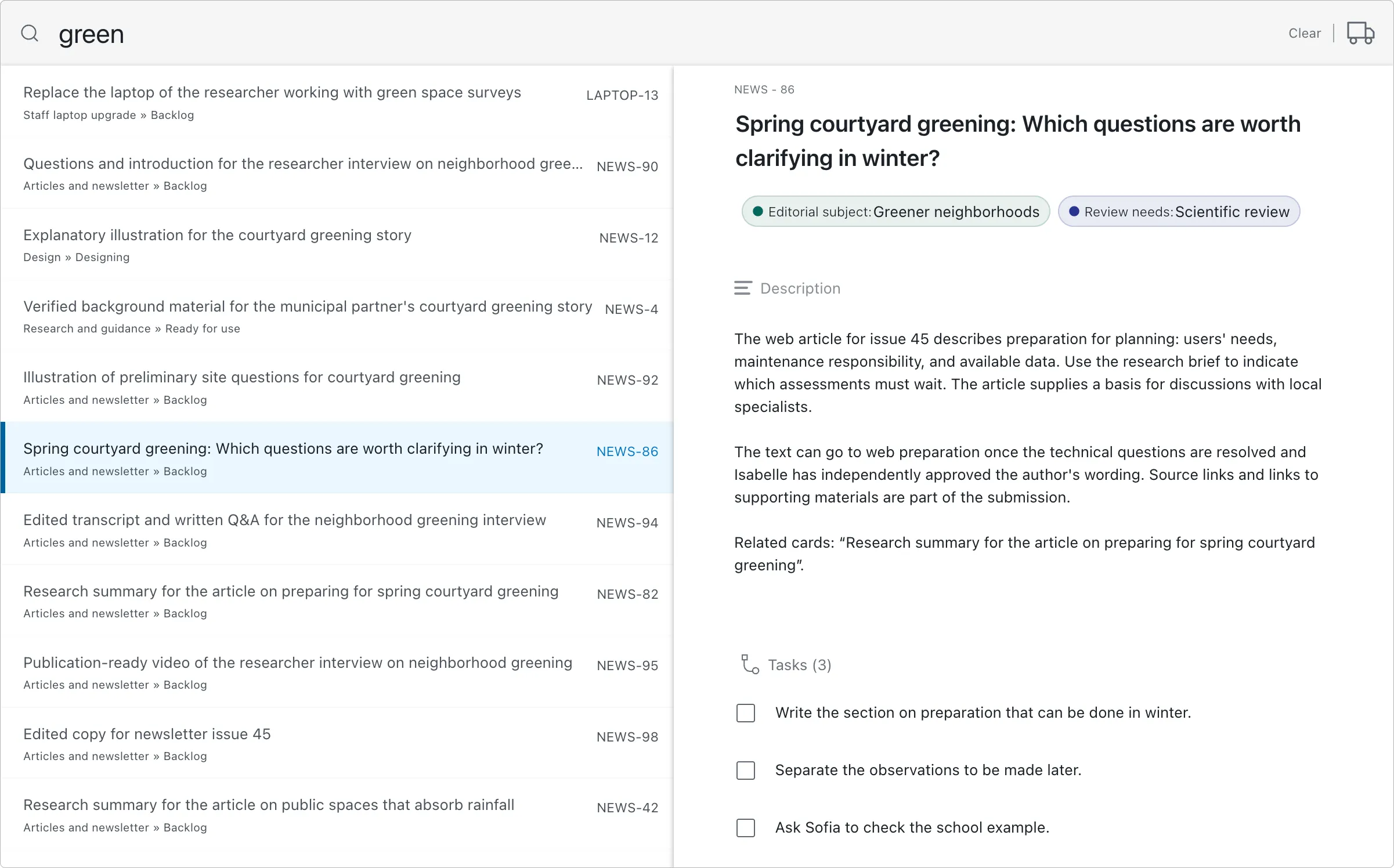
The details of a PM Engine card, with description, tasks and comments
Planning and backlog order

The plan is the order. What's on top comes next.

Planning is fast and unambiguous. The backlog order shows which card to start next.

  • Position-based planning

    A card's position is its place in the plan.

  • Two-level grouping

    Group a project's cards by assignee, tag, status or custom field. Then add a second level.

  • Board shelf

    The connected boards sit next to the plan. Drag work onto them.

  • Drag and drop between groups
  • Drop a tag or an assignee onto a card
  • Bulk actions
  • Paste a list to create cards
  • Insert between rows
  • Move to top or bottom
  • Keyboard navigation
  • Sort without losing the order
  • Show or hide empty groups
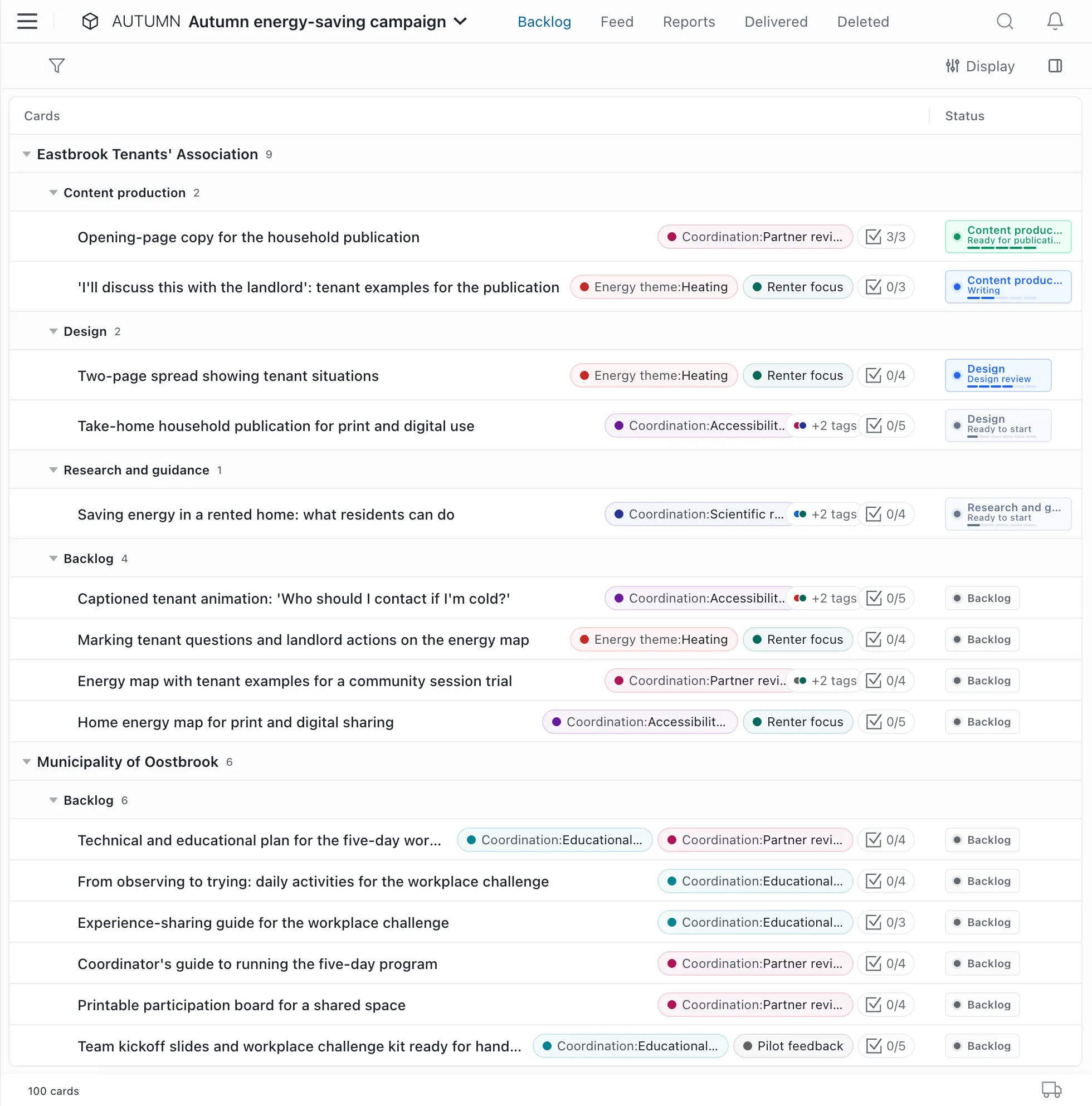
The backlog of a project with ordered cards
Hover over the image to magnify it.
Boards and workflows

Every team works by its own process.

A board's columns follow the team's real steps. One board holds work from several projects.

  • One board, several projects

    A team coordinates work from several projects in a single workflow.

  • WIP limits

    Set a limit per column. The board warns when a column goes over it.

  • Board calendar

    See cards and tasks with due dates, and drag them to reschedule.

  • Customizable columns
  • Drag and drop between columns
  • One-click filter by person
  • Customizable card display
  • Sort by due date
  • Excel export
  • Column and board totals
  • Deliver all cards from the last column
  • Send back to the backlog
  • Filterable activity log
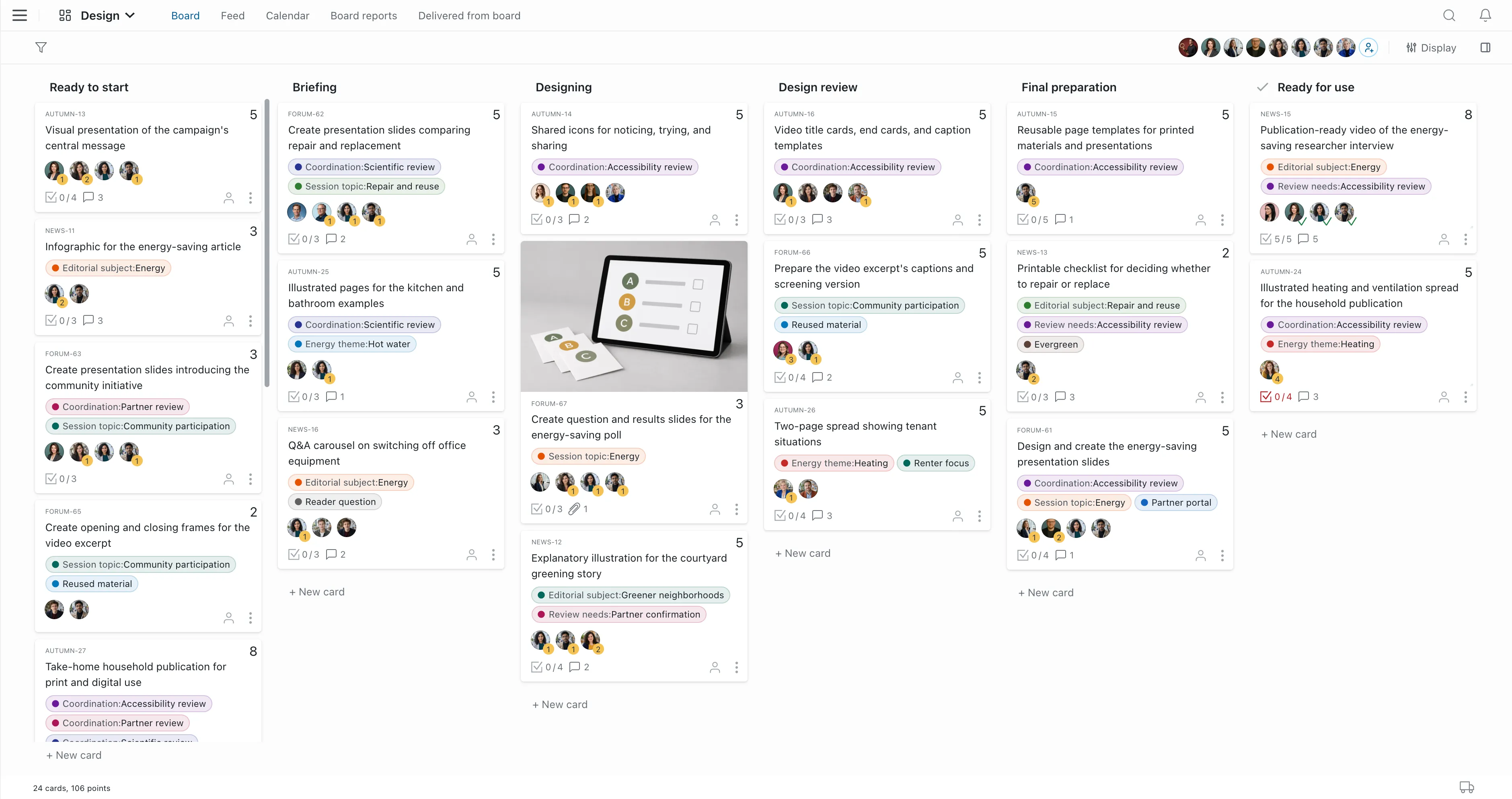
A PM Engine board with columns and cards
Hover over the image to magnify it.
Overview

All the work in one table, across projects.

Every card a person has access to, in a single view.

  • All Cards view

    Every active or delivered card in the workspace, in one table.

  • Advanced filters

    Nested “any” and “all” groups, with exclusions.

  • Saved views

    Save a view with its filters, grouping and sorting.

  • Show or hide columns
  • Sort by any column
  • Create a card in any project
  • Grouping and subgrouping
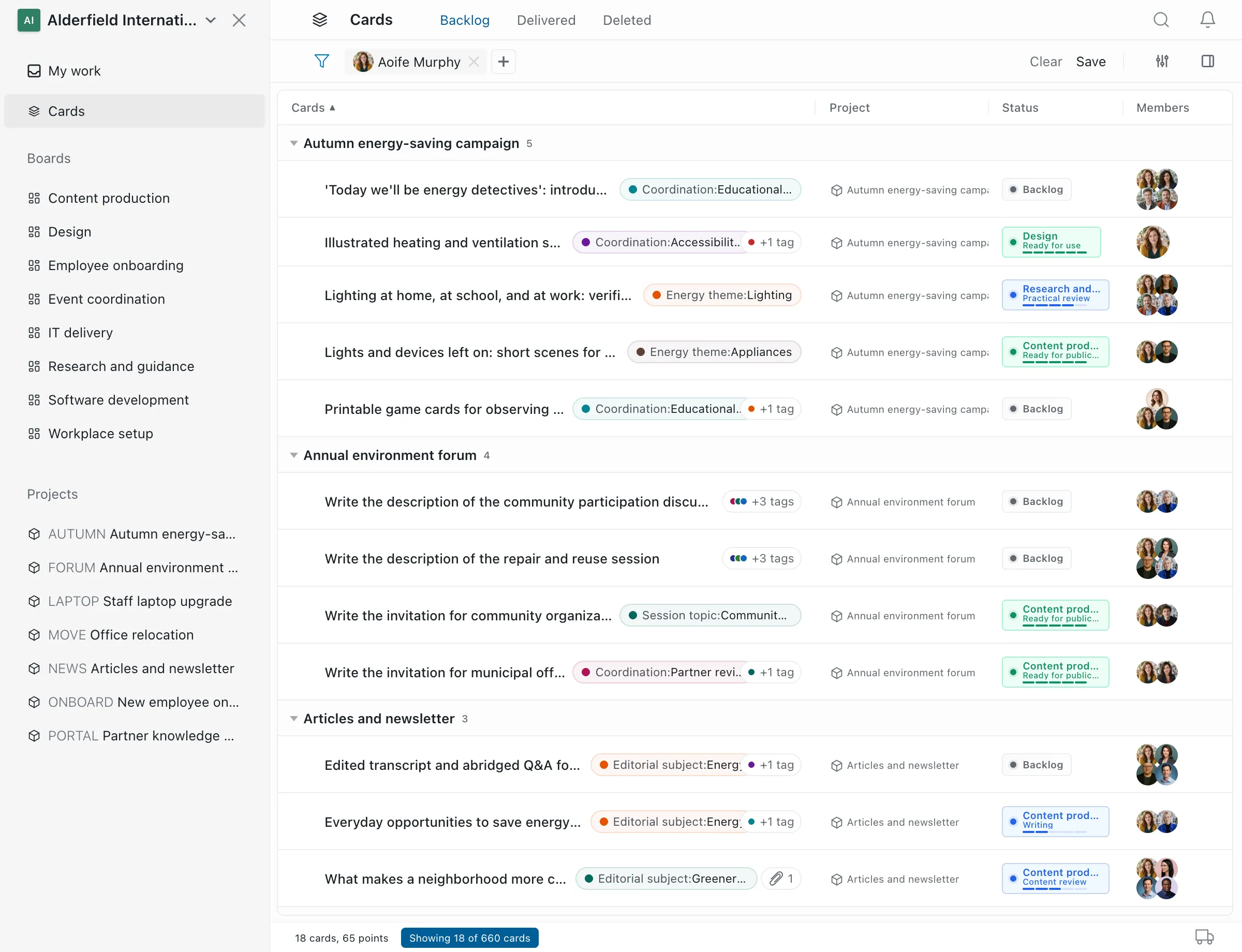
All cards arranged by project, filtered, with a Save view button
Hover over the image to magnify it.
Tags and custom fields

Add your own properties to cards

Use lightweight tags or typed fields. Share them across projects, or keep them in one.

  • Typed custom fields

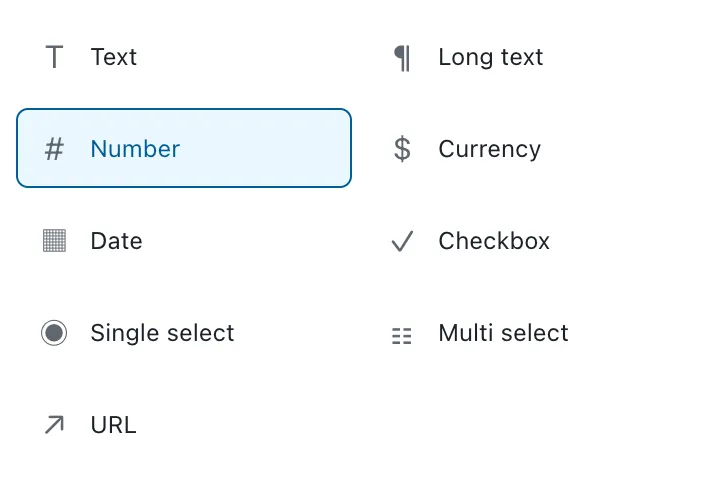
    Text, number, currency, date, checkbox, single-select, multi-select and URL.

  • Tags and tag groups

    Colored tags, quick to add, organized into groups.

  • Project or workspace scope

    Available in every project of the workspace, or only in selected ones.

  • Safe field type changes
  • Merge tags
  • Required fields per project
  • Type-aware filters
  • Group by field
  • Turn built-in fields on and off
  • Archive and restore
Choosing the type of a custom field in PM Engine

Team and transparency

Personal focus, shared discussion and measurable outcomes.

My Work and time tracking

Everyone sees what they have to do, and how much time it took.

  • My Work

    Every card and task assigned to you, across workspaces, in your own order.

  • Work-log assistant

    Suggests how to split the day's hours across the cards you worked on, up to your daily target.

  • Timesheet

    By workspace, project, card and task, for any period.

  • Focused list
  • Personal calendar
  • Log time
  • Log time for a colleague
  • Daily target
  • Card totals
  • Favorites
Collaboration and notifications

The discussion stays with the work, not in email.

  • Comments on cards and tasks

    Replies, @mentions, emoji and attachments.

  • Live updates

    Other people's changes appear without a reload.

  • Activity log

    Changes grouped by project and by board.

  • Comments with Reader access
  • In-app notifications
  • Email digest
  • Follow cards
  • English and Hungarian interface
  • Light and dark themes
Reports, import and export

Numbers your team can learn from.

  • Delivery rate

    Cards or points delivered per week, with a moving average and a trend indicator.

  • Cumulative flow diagram

    By column, in cards, points or hours.

  • Excel import wizard

    Map the columns, then preview and validate the rows before anything is created.

  • Time summary
  • CSV import
  • Excel export
  • Zoom into a period
  • Saved report settings

Integrations

AI assistant access, an API and webhooks for the tools you already use.

AI assistant (MCP)

Use PM Engine from your own AI assistant.

ChatGPT, Claude, Codex or Visual Studio Code connects to your organization's own PM Engine. Each user decides exactly what the assistant reads and changes.

  1. Create an access profile

    Read-only or read-write, for selected projects and boards.

  2. Connect your AI client

    Approve the connection in the browser and choose the profile.

  3. Ask in plain language

    The assistant works as you, within your permissions.

  • ChatGPT, Claude, Codex, VS Code
  • Search and list cards
  • Move and deliver cards
  • Log time
  • Ask for reports
  • My Work and notifications
An example conversation with an AI assistant

Create a project and cards from these meeting notes.

spring-conference-notes.docx

I created the “Spring Conference” project with 8 cards and 21 tasks. The cards are at the top of the backlog, in the same order as the notes.

  • SC-1Book the venue
  • SC-2Invite the speakers
  • SC-3Build the registration page
  • What was delivered last week?
  • Which of my cards are overdue?
  • Log 2 hours on SC-4.

The assistant never goes beyond the user's permissions.

API and webhooks

Connect PM Engine to the systems you already use.

REST API (beta)

Exchange data with your business applications

A versioned JSON API with bearer token authentication. Interactive documentation ships with your own installation. The API covers projects, boards, cards, tasks, custom fields and logged time, and moves several cards in one request.

Webhooks

Tell your other systems when something changes

Card, task, project and membership events. Each one is signed with HMAC-SHA256, retried automatically and recorded in a delivery log.

Excel and CSV

Turn your existing spreadsheets into cards

The import wizard validates the data before anything is created. Exports include custom fields, and the timesheet exports to Excel.

Administration and operations

Permissions, security and self-hosting.

Permissions and workspaces

Everyone sees and edits exactly what they should.

  • Multiple workspaces

    In one installation, with a single account per user.

  • Reader or Editor access

    Set separately for each project and board.

  • Invite by email

    Invite several people at once and set their access as you go.

  • Admin and Member roles
  • Additive permissions
  • Changes apply immediately
  • Preserved history
  • Archive projects
Sign-in and security

Sign-in and data stay in your hands.

  • Single sign-on

    OpenID Connect (Google, Microsoft Entra ID) and LDAP.

  • Tested configuration

    A new sign-in configuration goes live only after it passes a test. The old one keeps working until then.

  • HTTPS

    With Let's Encrypt, your own certificate or a self-signed one.

  • Turn off password sign-in
  • Invitation only
  • Session revocation
  • Sign out of other devices
  • Email address verification
  • SMTP with a test email
Installation and operations

Run it yourself, even without a sysadmin team.

  • Native installers

    Windows, macOS, Linux DEB and RPM, AMD64 and ARM64.

  • Tray app and command line

    Status, start and stop, ports, certificates and log settings.

  • Backup, restore and update

    Verified archives, a backup copy, and a stable or beta update channel.

  • System service
  • First-run setup wizard (Windows and macOS)
  • Status as JSON
  • Certificate management
  • Online and offline license activation
  • Uninstall without losing data
Pricing

Every feature, in every plan.

Every feature above is in the free Starter plan too. Plans differ in the number of users and in support, not in features.

View pricing
FAQ

Questions about the features

Features and usage

The questions we hear most about what PM Engine does.

Is every feature available in the free plan?

Yes. Plans differ in the number of users and in support, not in features.

Which languages does the interface support?

English and Hungarian. Each user picks their own language, and a light or dark theme.

Can we import our existing spreadsheets?

Yes. The Excel and CSV import wizard maps the columns and validates the data before anything is created.

Does it need an internet connection?

Not for daily work. Online license activation and remote AI assistants need network access. A license can also be activated offline.

Try it for free, with no time limit.